Evidence that holds up
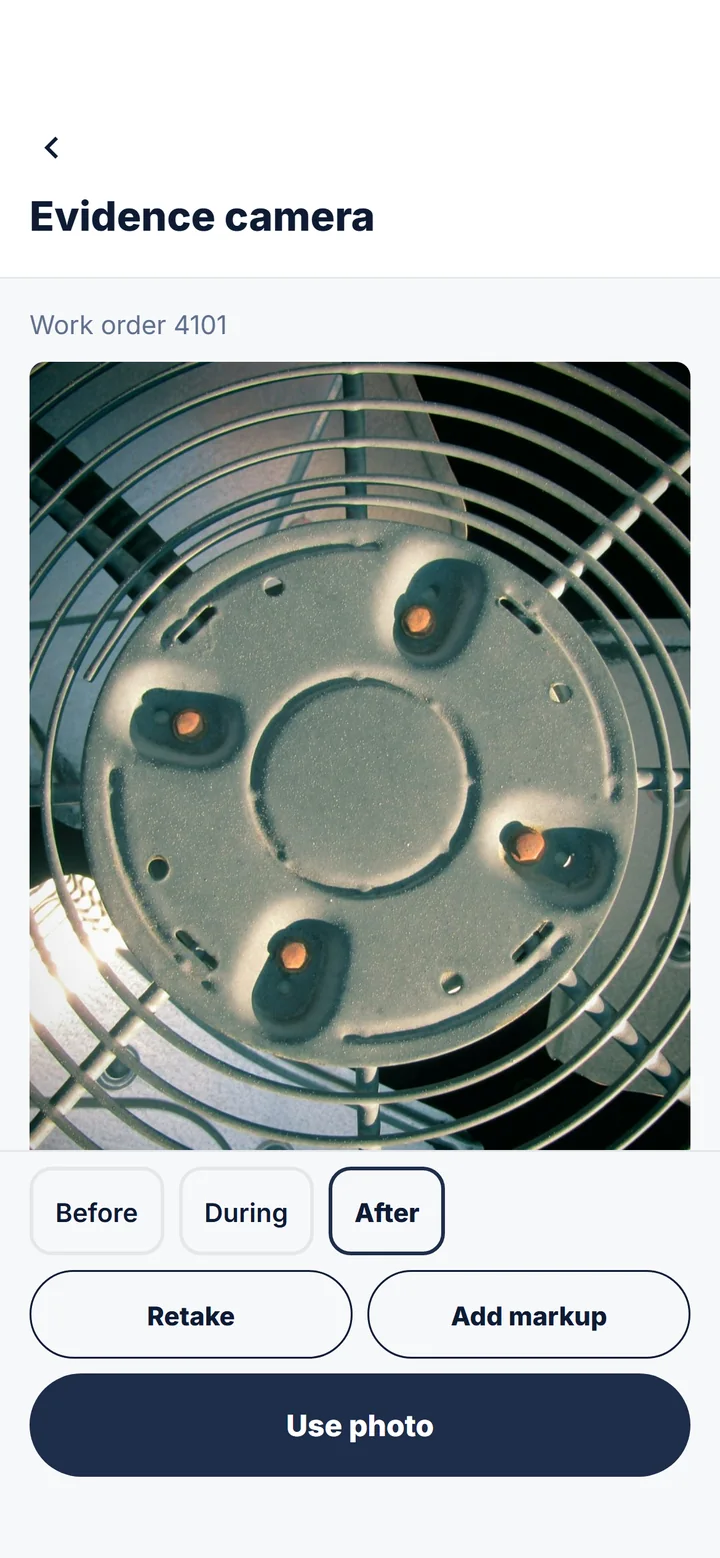
Before, During and After are asked for where they matter. The label is printed into the picture, mark-up stays inside it, and Verify says whether it has changed.
GoConnect Field The technician app
Scan the asset. Work the list. Photograph the proof. Sign it off. With signal or without it, the office gets the same complete record.
A note on paper, copied later.
A checklist line with a pass, a fail and a reason.
A photo in somebody’s chat.
A labelled photo on the work order, that can be checked.
A phone call to ask if it is done.
A journey the supervisor can open, with a time on every step.
Tuesday at Cedar Heights. Alex Rivera has nine jobs on the phone. Scroll through his morning.
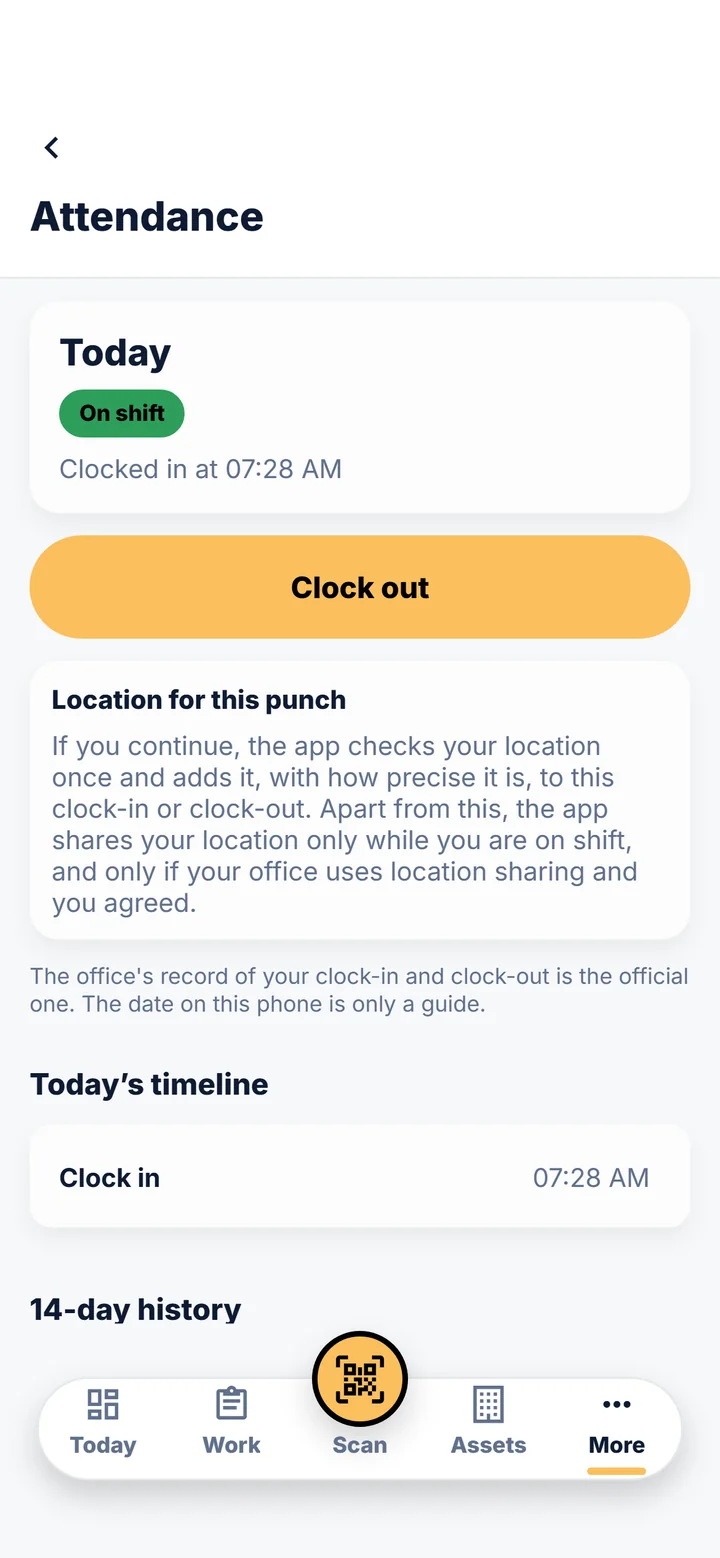
One tap starts the shift. If the technician allows it, the phone adds its position to that one punch, and says so on the same screen.
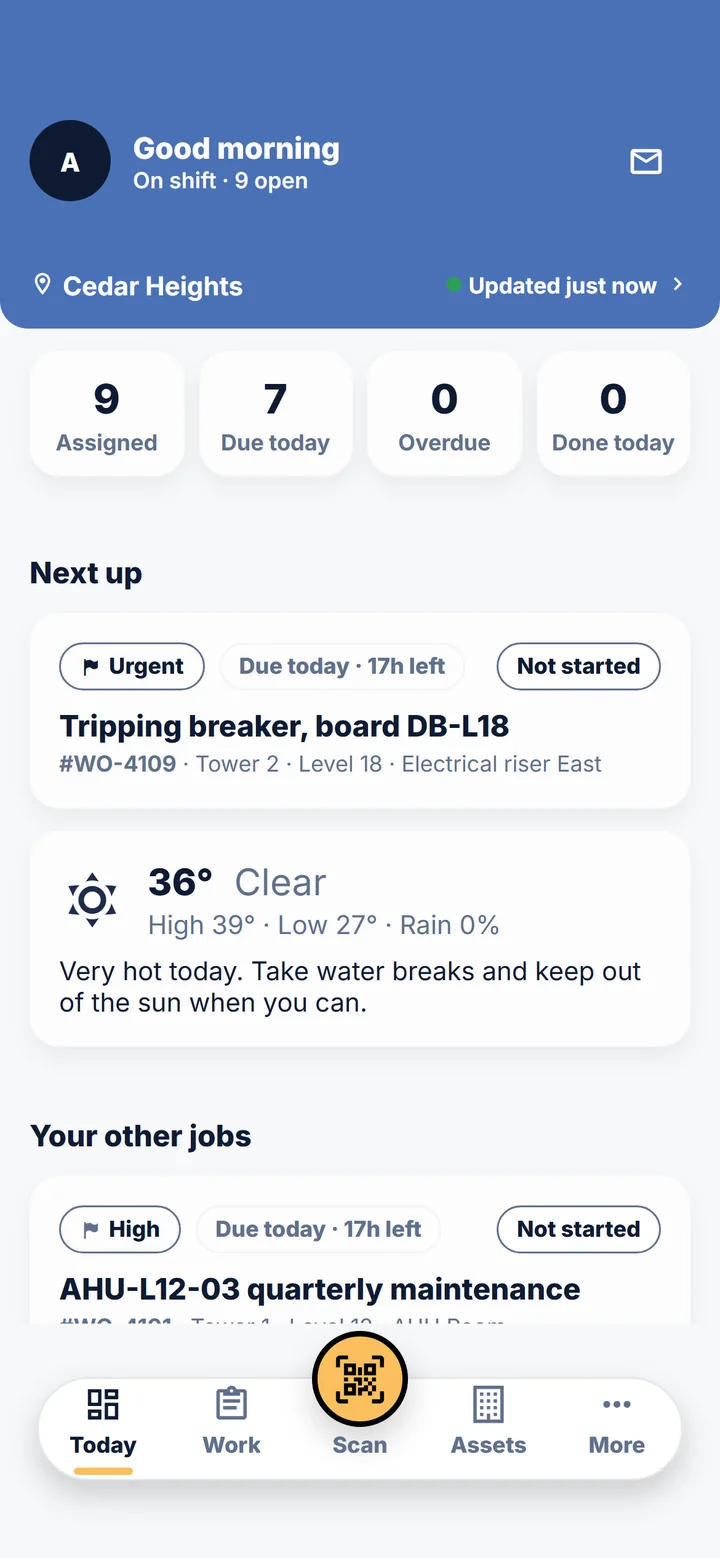
What is running, what is due, what is urgent and what the weather is doing at the property. On a very hot day the app reminds the technician to take water breaks.
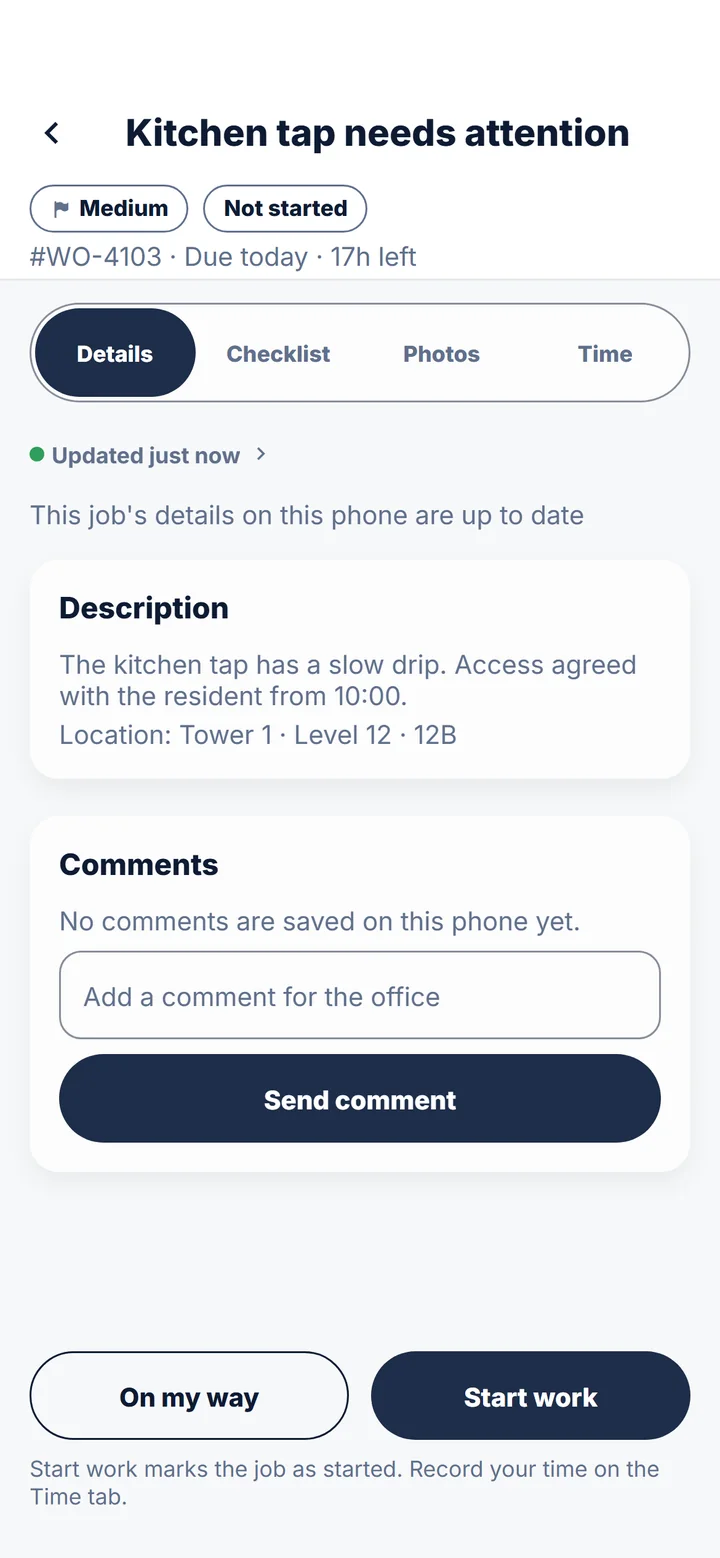
A resident reported a dripping tap. The office turned it into a job with the floor, the unit and the agreed time. On my way tells the office the technician has set off.
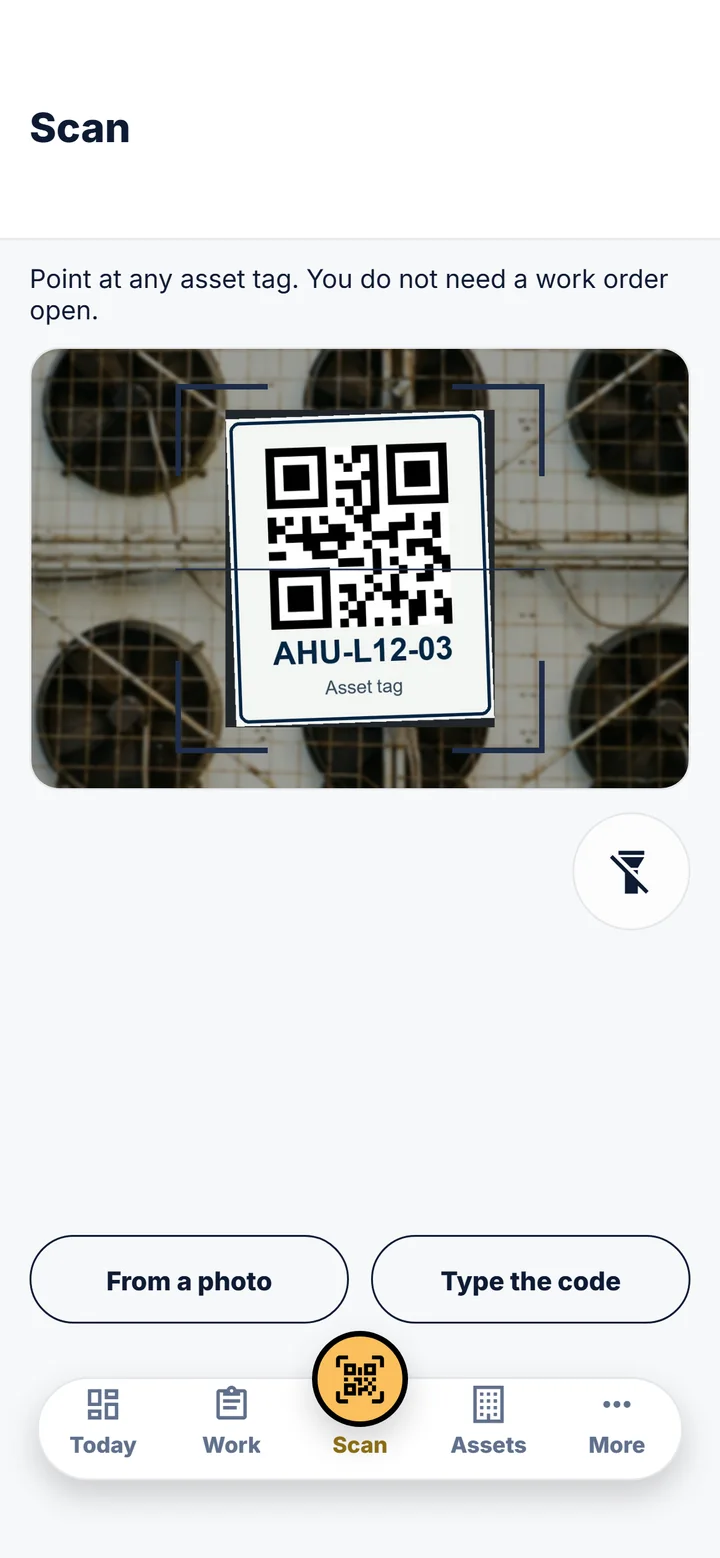
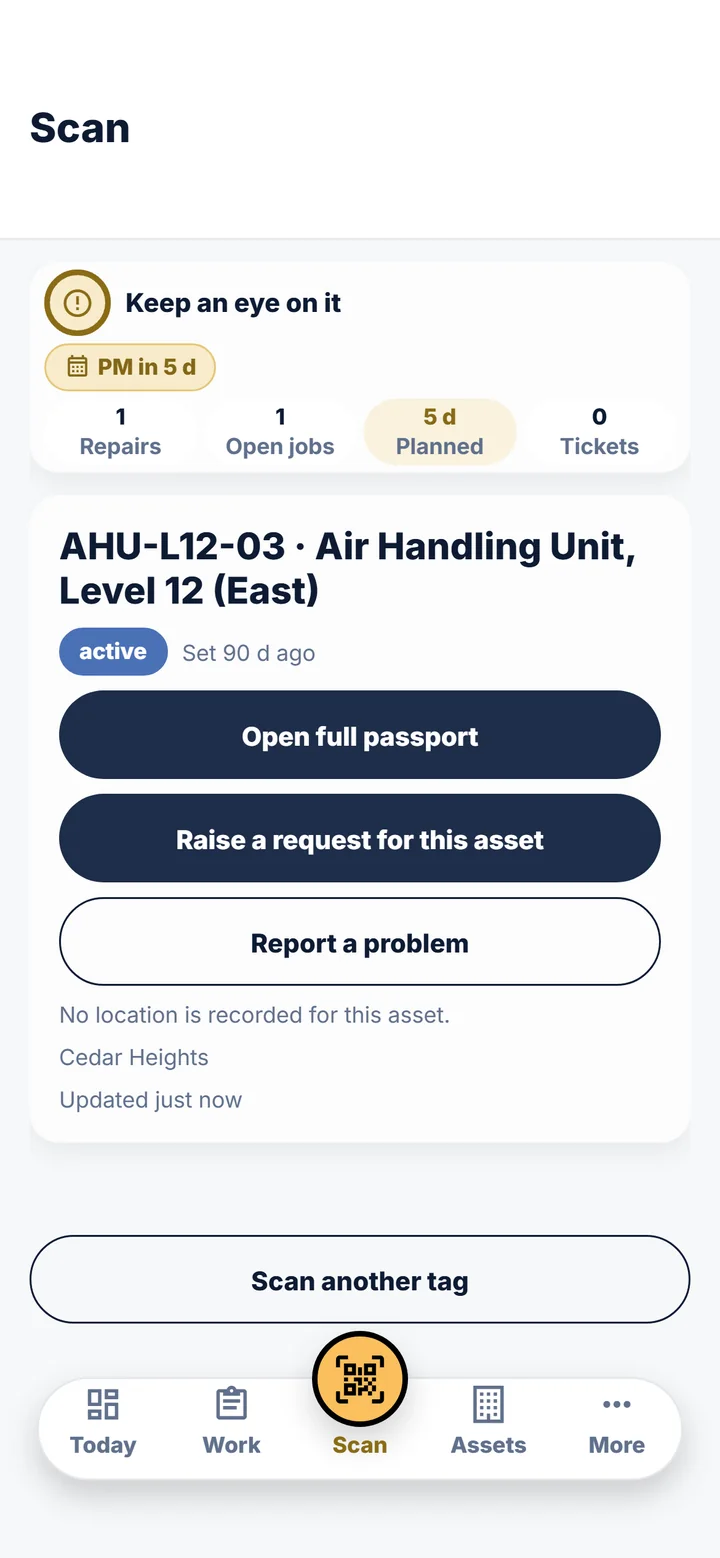
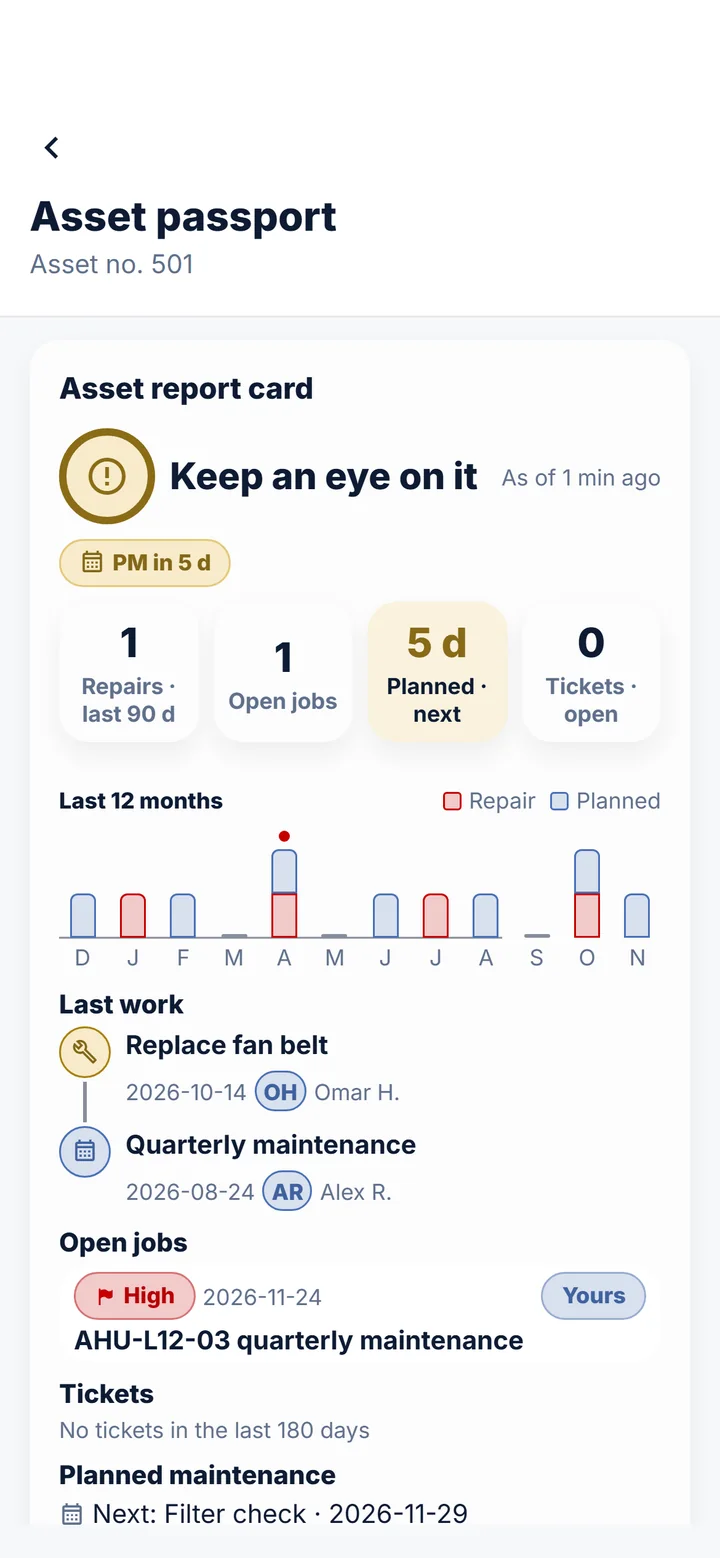
The tag on the air handling unit answers: condition, open jobs, next planned visit. The right machine, confirmed at the machine.
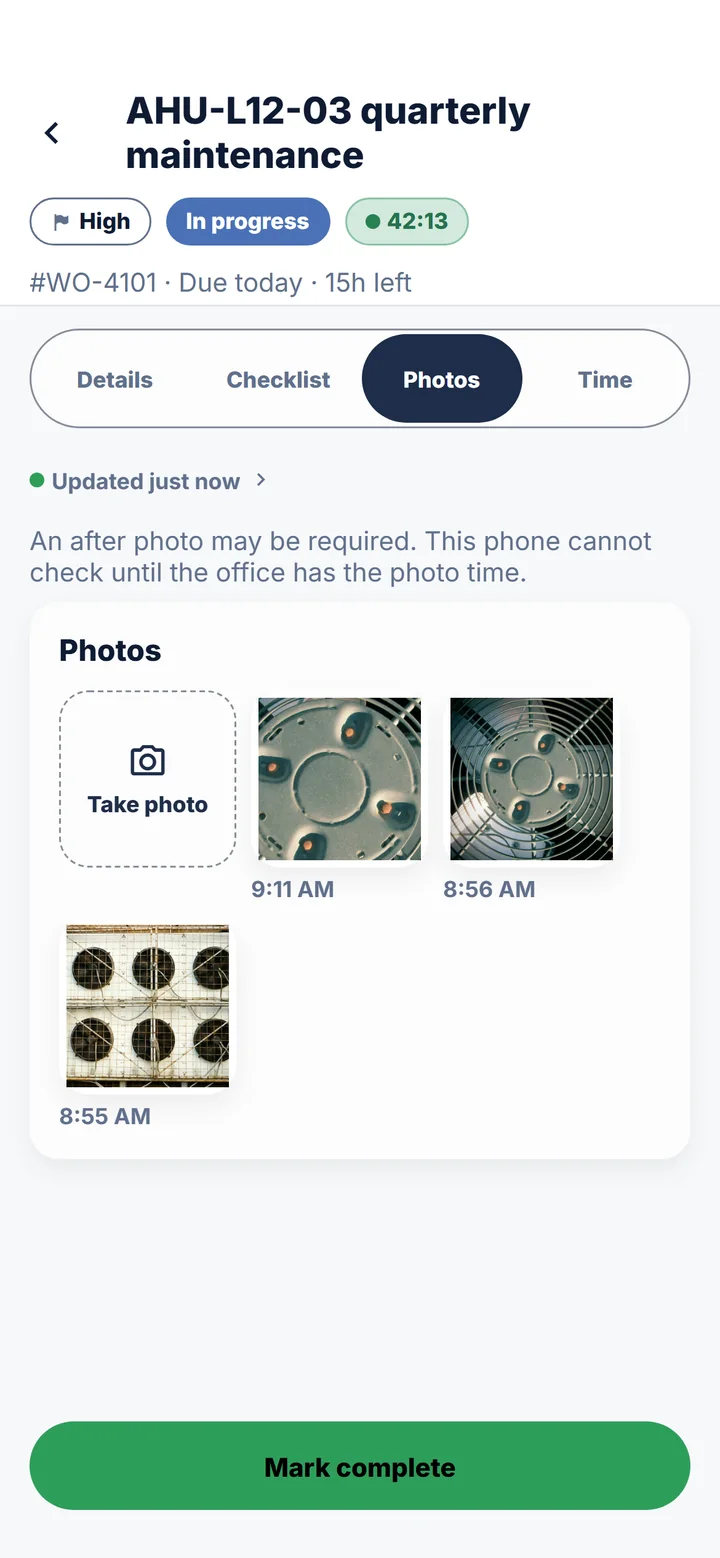
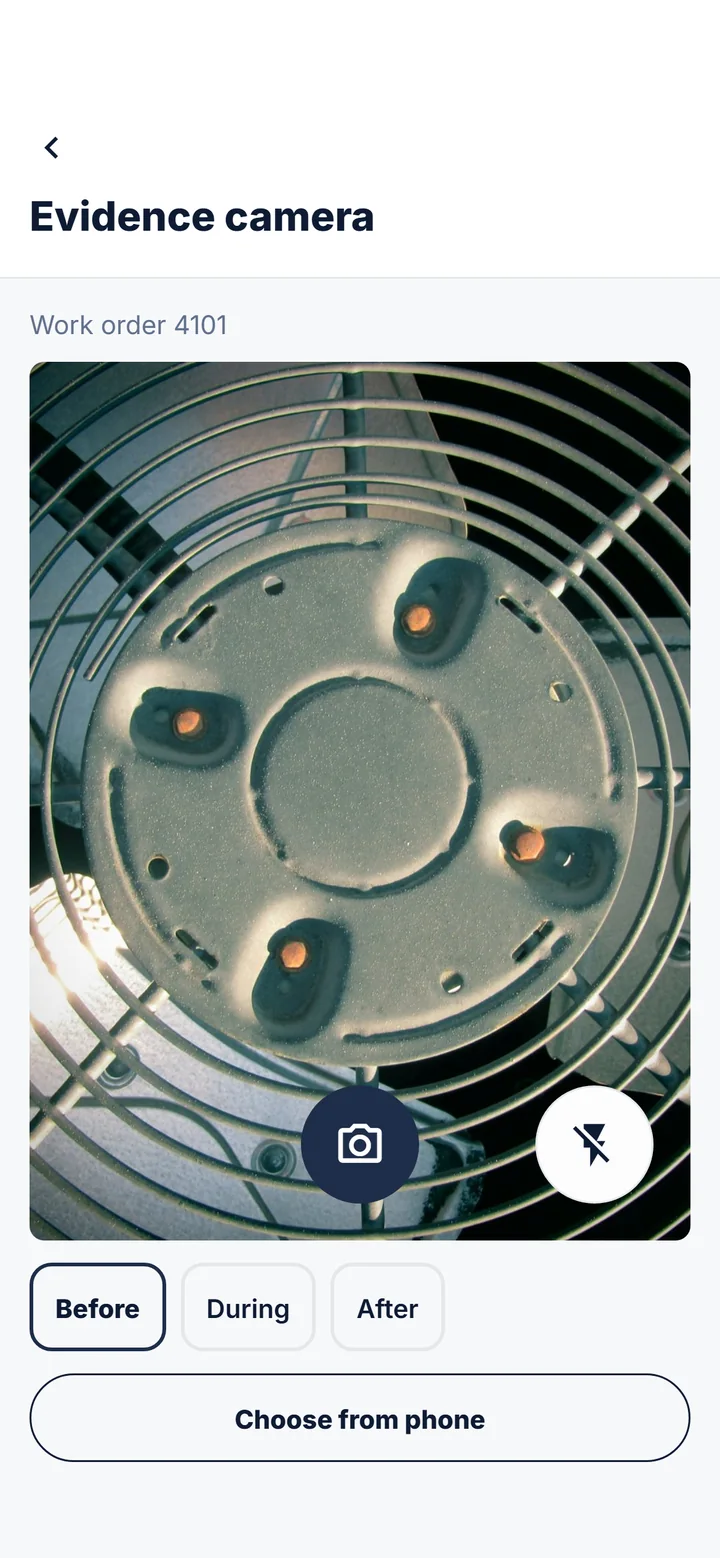
Before, During and After are separate steps. Each photo carries its own label: work order, technician, time, and place when known.
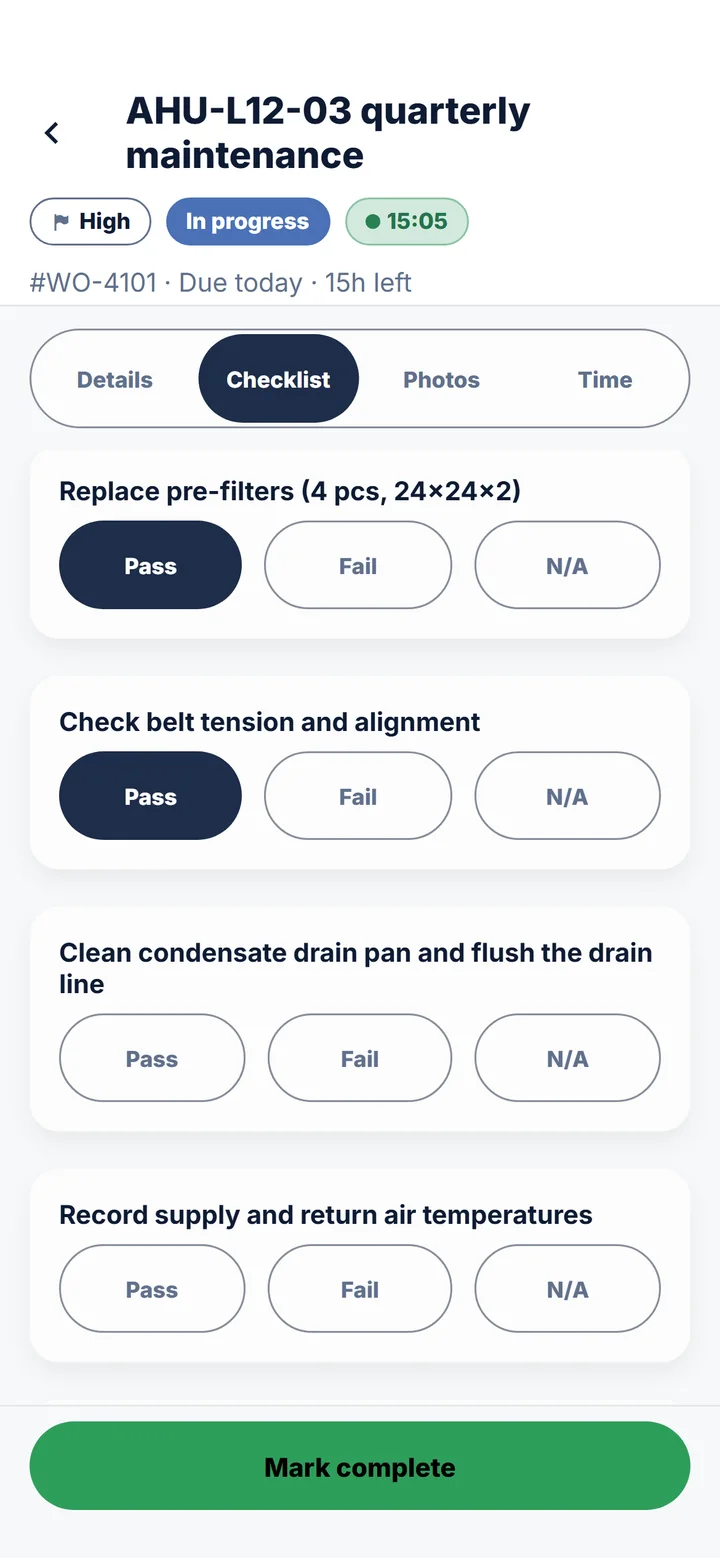
Pass, Fail or N/A on every line. A fail needs a note before it can be saved, and an unfinished fail holds the completion back.
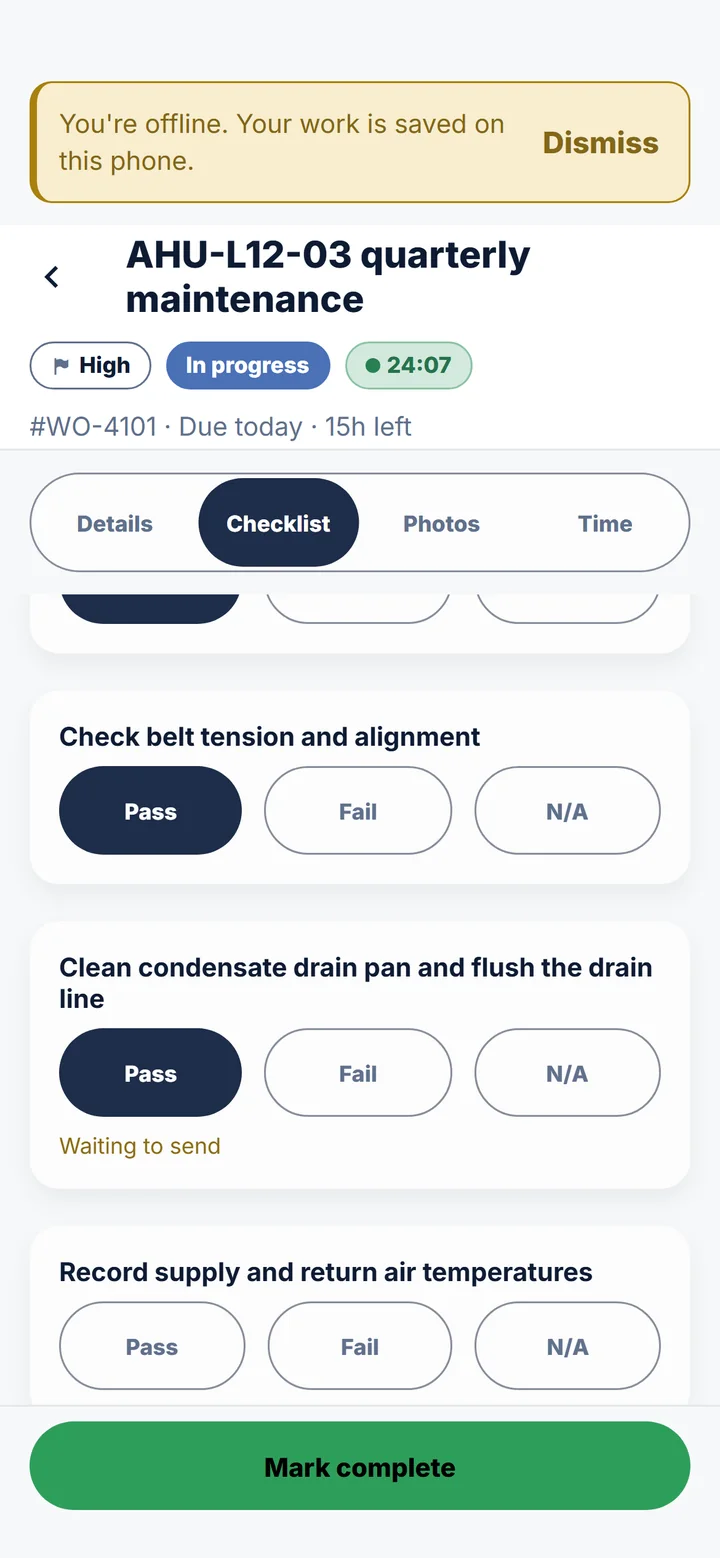
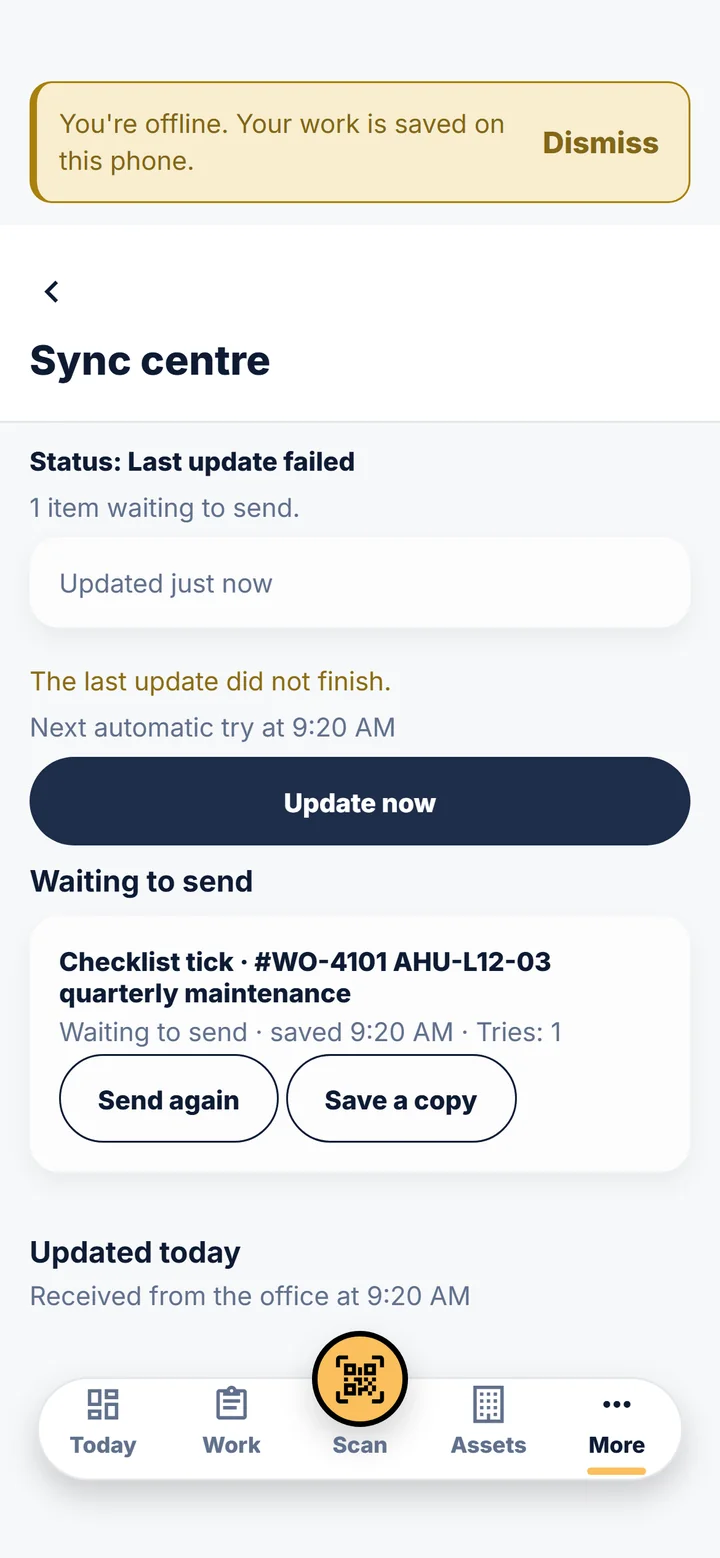
The plant room has no coverage. Nothing stops. The tick is saved on the phone and marked Waiting to send.
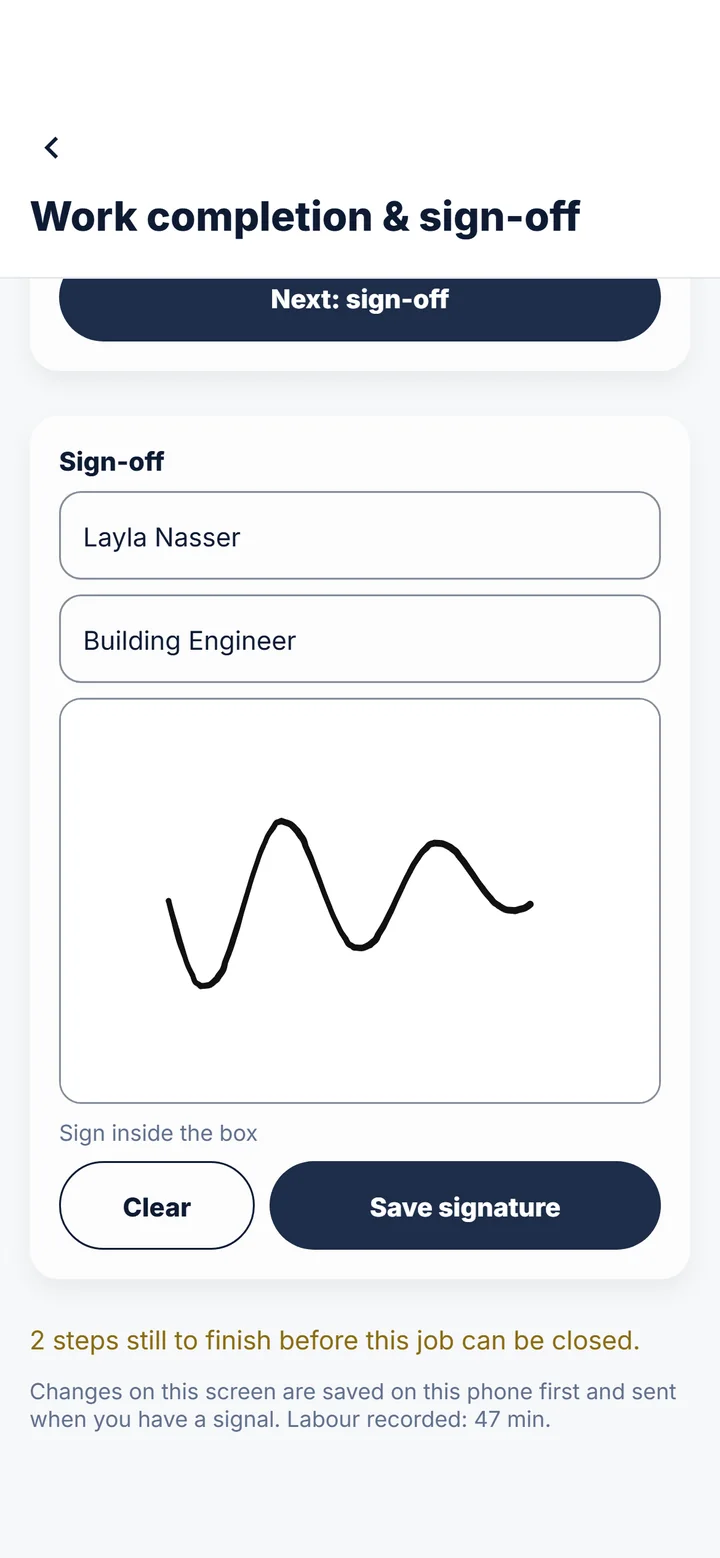
The equipment declaration and the required photos come first. Then a name, a role and a finger.
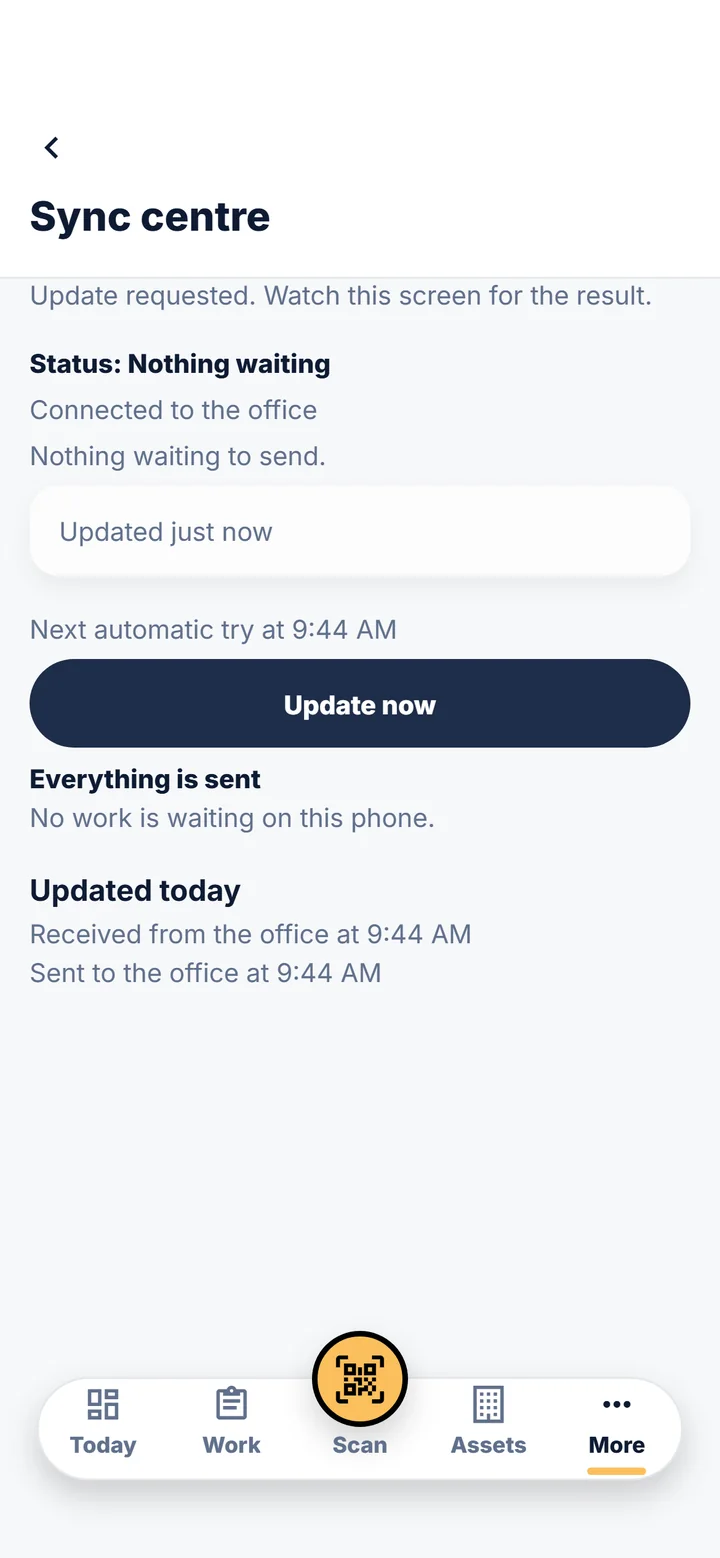
Back in signal, opening the app sends everything. The Sync centre says so in plain words: Everything is sent.
Before, During and After are asked for where they matter. The label is printed into the picture, mark-up stays inside it, and Verify says whether it has changed.
Condition, last work, next planned visit and twelve months at a glance.
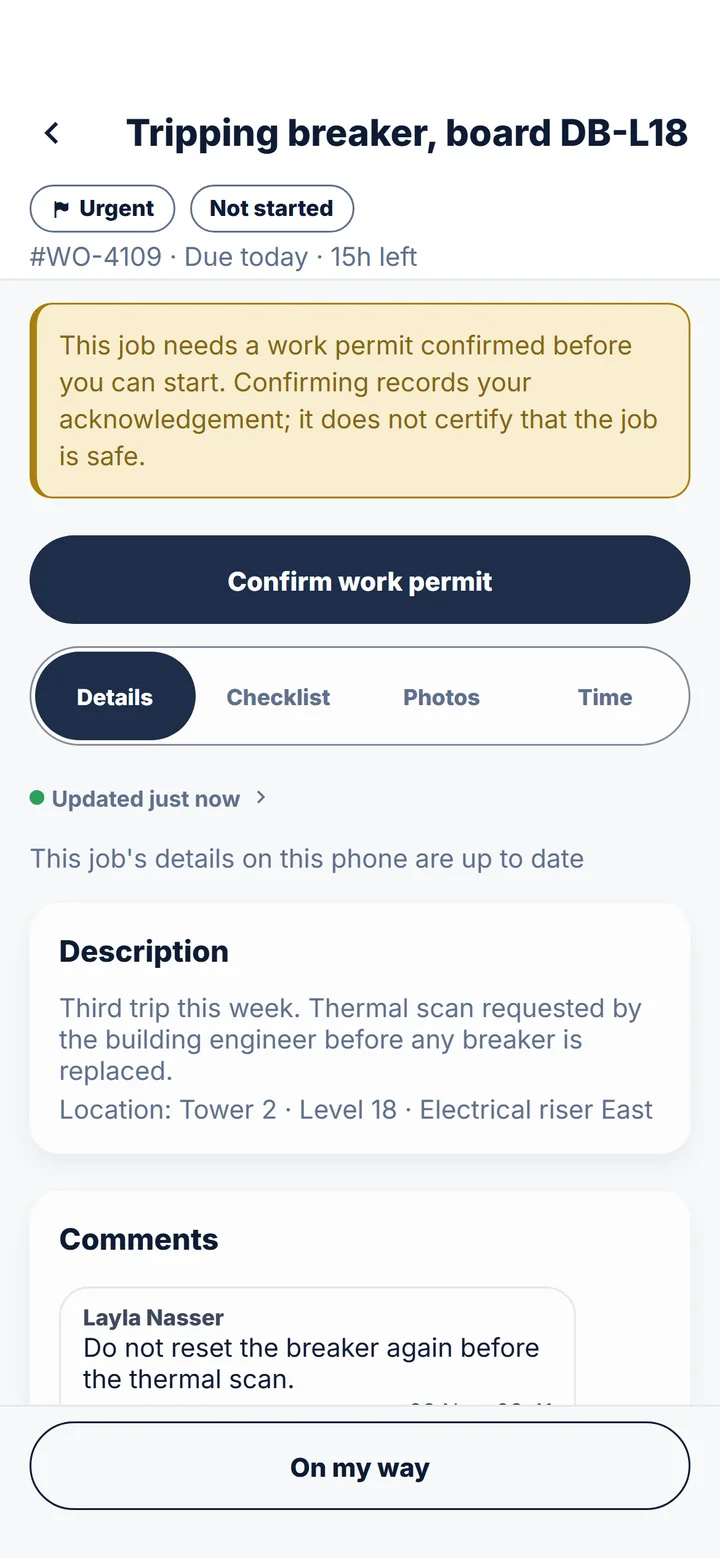
If the office marks a job, it cannot be started until the technician confirms the permit or the hazard assessment. It records that they read it; it never certifies the job as safe.
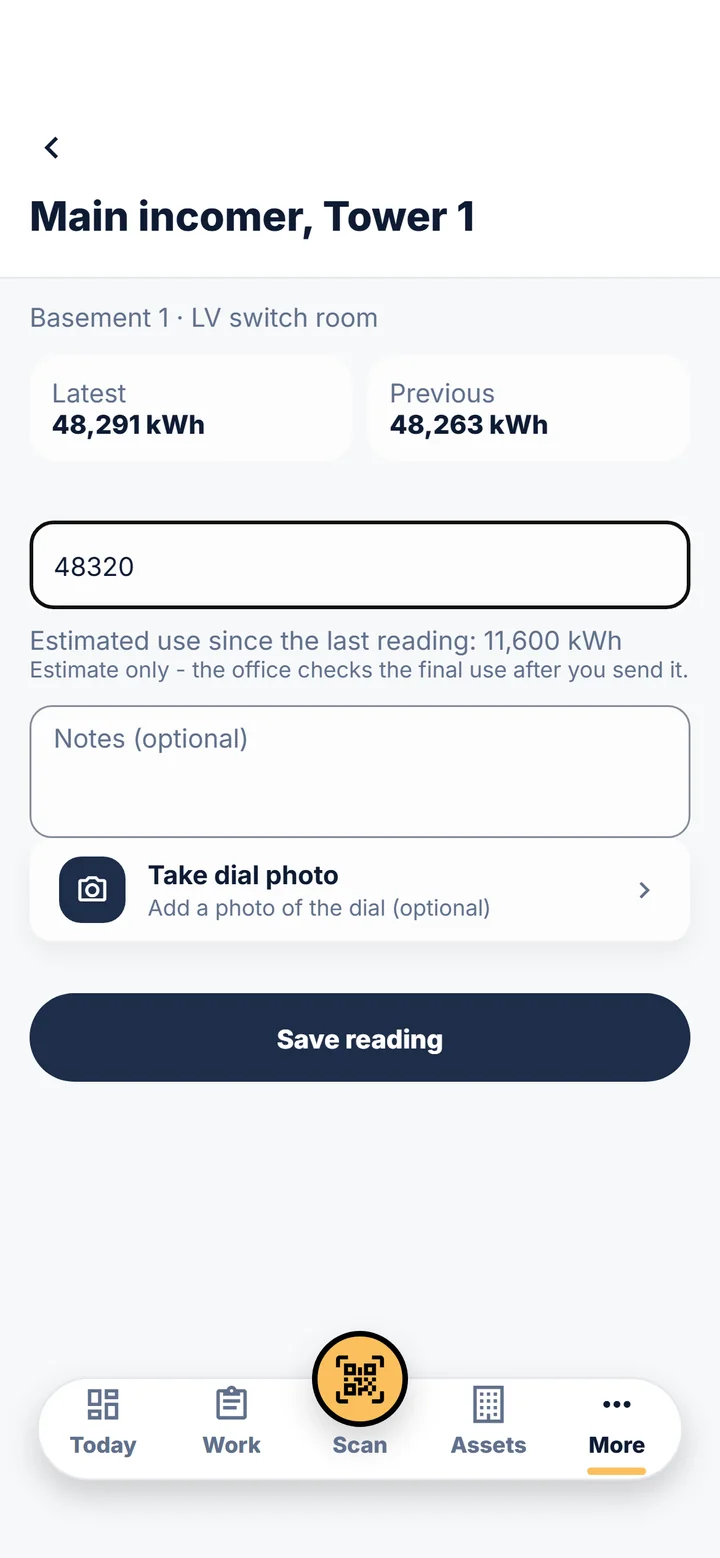
The last reading, the estimated use as you type and a photo of the dial. A low reading is flagged for a supervisor, not refused.
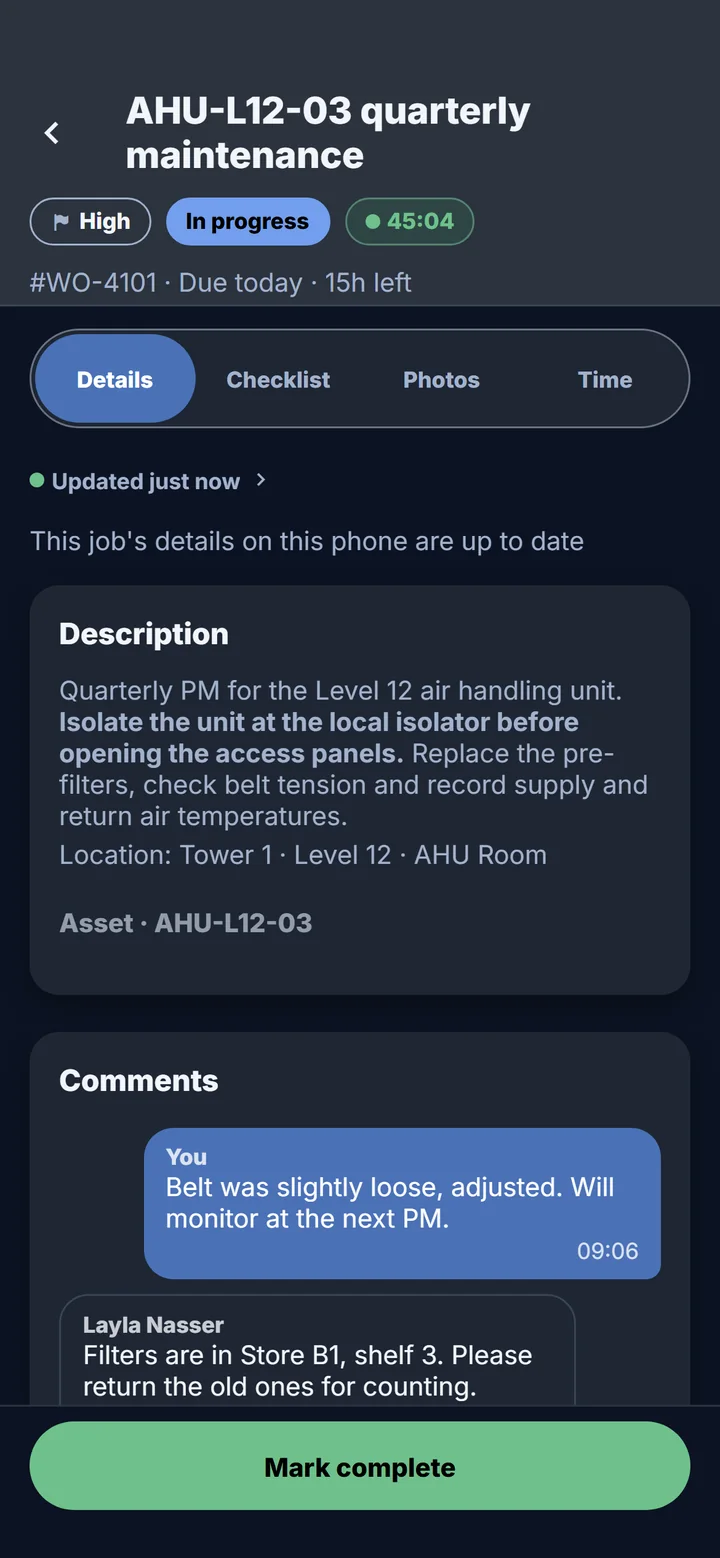
Light, dark or whatever the phone prefers.
Raise it on the spot, with photos. The office turns it into a work order to plan and assign.
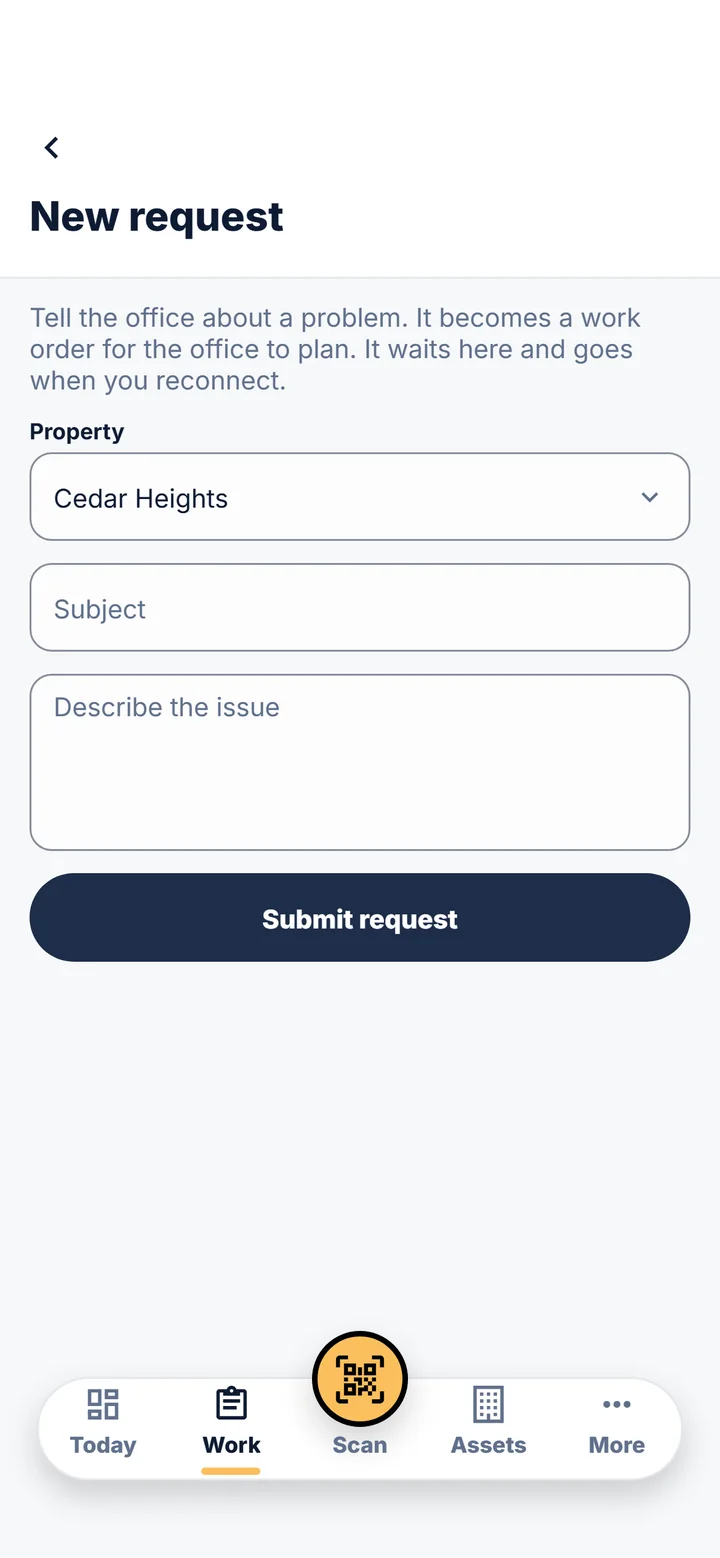
Basements, plant rooms, lift shafts. Whatever the technician records is saved on the phone first and sent when the connection returns. Sending the same work twice never saves it twice.
This is the Job journey of the air handling unit you have just followed. Nobody typed it up. It is what the phone recorded, in order.

Who is on shift, on the way or on a job, and where the day needs help. Jobs sit at their property.
The whole story of a job on one page, from clock-in to sign-off, with the time between steps.
A read-only link that expires, for one job only, with photos stripped of location.
While a timer runs, the phone can ask if work is still going on. A missed check alerts the supervisors.
Choose which photos, steps and signatures a job needs before it can close.
Third-party technicians only ever receive the work assigned to them.
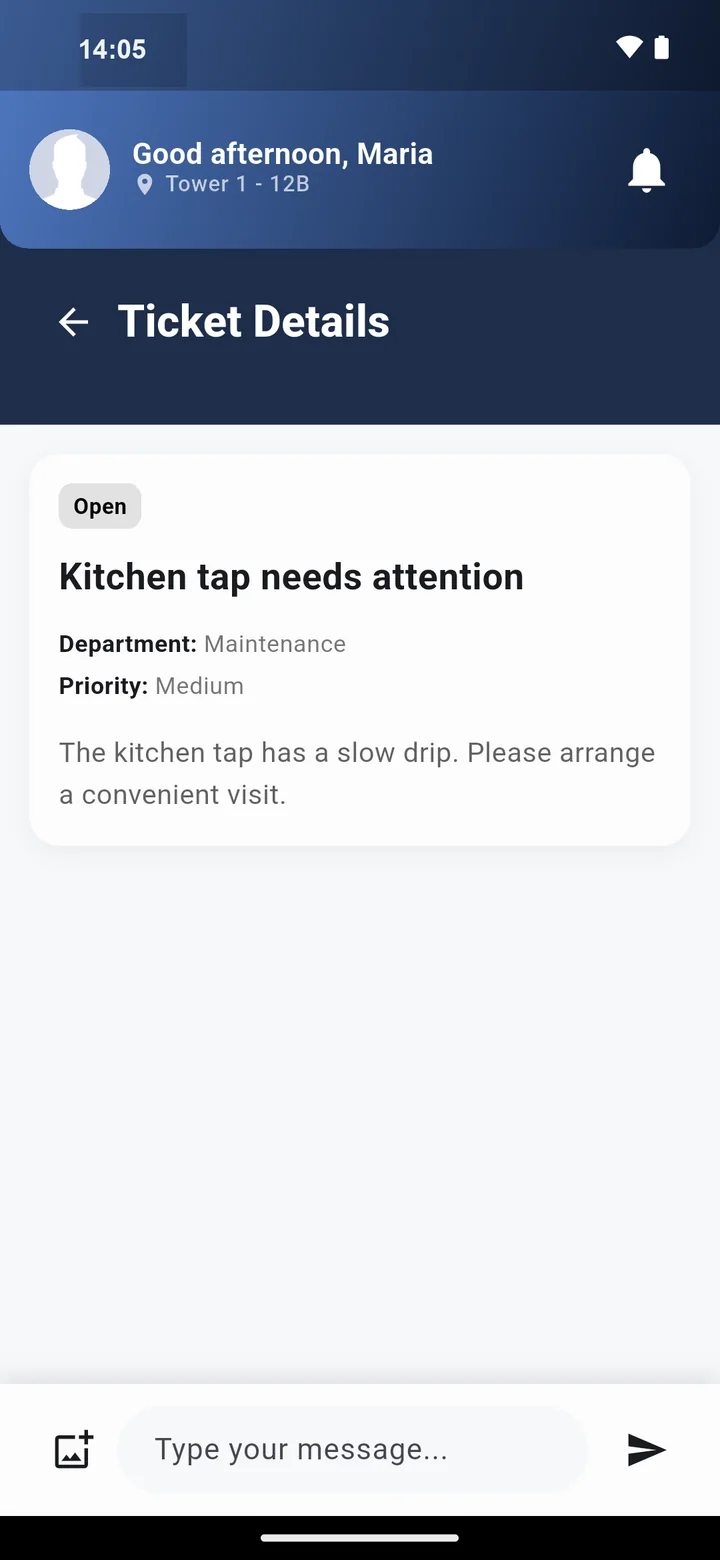
The request made in the GoConnect resident app and the work order in GoConnect Field belong to the same platform. The office sits in the middle, plans and assigns.
On Android, the app keeps its saved work in an encrypted store that only this app on this phone can open.
Fingerprint or the phone screen lock on start, and again after ten minutes away. GoConnect never keeps a separate app PIN.
A phone receives the jobs, assets and meters its technician is allowed to see. Every request is checked against their permissions and recorded.
The office sees the signed-in phones of each person and signs out just the lost one, leaving the others working.
Verify compares a sent photo with what was recorded when it was taken: unchanged, or it does not match.
If the office refuses something, it stays on the phone with the reason, to be reviewed with a supervisor. Nothing is deleted by itself.
On location: sharing is off unless your office turns it on, starts only after the technician agrees, runs only on shift, and positions are deleted after a set period (90 days unless you change it).
Properties, assets, tags, people and roles. Decide the rules for each property.
Job journey, location sharing, activity checks: these start off until your office turns them on, for all properties or only some.
A small crew, real rounds, your own tags. A user manual and training guides are ready.
Add properties and contractors at your pace. Set a minimum version and the app asks older phones to update.
Android phones today; Android 11 or newer is recommended. The iPhone version is being prepared. We confirm the supported models for your project before rollout.
Work that is already on the phone carries on: start, checklist, photos, time, signature, completion, requests, meter readings and clock-in. It is saved on the phone first and sent when there is a connection. The first sign-in, checking that a photo is unchanged and receiving new jobs need a signal.
English and Filipino today. Arabic is not in the app today. If your project needs it, tell us and we will agree scope and dates with you.
Continuous sharing happens only if your office turns it on, only after the technician agrees on the phone, and only between clock in and clock out. Technicians can say no and still work. Apart from that, the position is read when a photo is taken, when a planned visit is checked in, and when the shift starts or ends, if the technician allows it.
Yes. Third-party technicians sign in to the same app and only receive the work assigned to them. Your administrators choose what they see, what they can edit and what is mandatory.
GoConnect Field is the field side of the GoConnect platform: assets, work orders, planned maintenance and requests live in the office and arrive on the phone. How it works alongside other systems is agreed project by project.
Access is arranged with your project team. Ask for a demo and we will show it with sample data, then agree a pilot.
We will walk through a working day with sample data, then talk about your properties, your rules and your teams.